
Swift Access 2025 - Facility Staff
Knowledge base
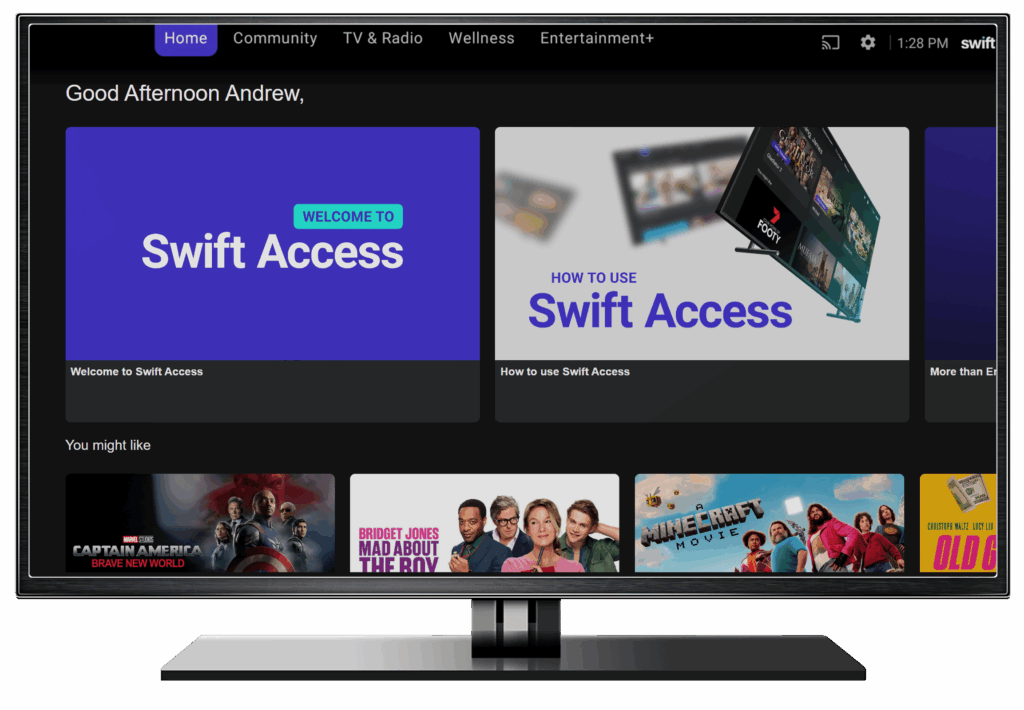
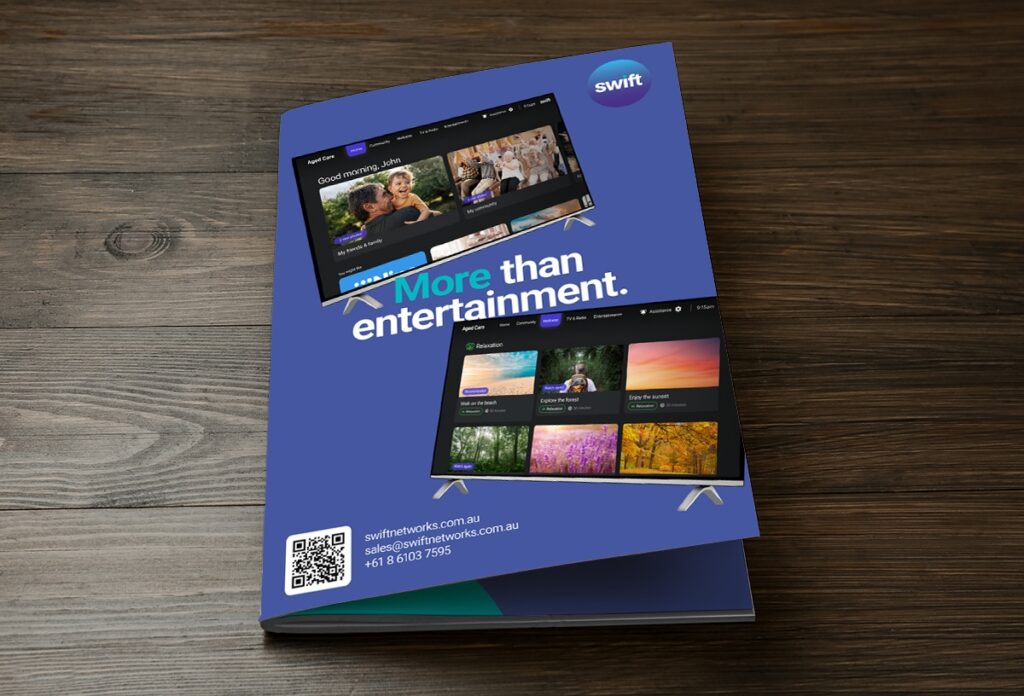
Posters, in room guides and other materials the business may want to print to share with end users

If you’ve got a question about our products or services, click the link or scroll down to our FAQ section below.
Getting Started
Video : Welcome to Swift Access
Video : How to log into Manage, your Swift online dashboard
Video : Meet the Swift Manage Dashboard
Video : How to use Swift Care
PDF : How to navigate the Dashboard in Manage.
Click Here to download a guide on how to navigate the dashboard in Swift manage. Covering the multiple dashboard views and how to switch between them
Step-by-Step Guides
Video : How to upload text information to the Swift Access Homescreen
Video : How to upload an image to the Swift Access Homescreen
Video : How to upload a video to the Swift Access Homescreen
Video : How to use different fonts in your notices
Video : How to edit, copy or delete an information notice
Video : How to add an activity calendar to your Swift Access Homescreen
Video : How to add a rotating food menu to your Swift Access Homescreen
Video : How and when to use the messaging system
Video : How to set up your Swift Aged Care Remote
Video : How to view a Pairing Code in Manage
Video : How to add or edit resident details in Manage
Video : How to Sign Out a resident in Manage
Video : How to add or edit an image in Manage
PDF : Aged Care - Setting up your Swift remote control
Click Here to download the guide to setting up your Swift Aged Care remote control. This allows you to use the Swift remote to control any TV at your facility.
To watch a video on how to set up your Swift remote control please Click Here
PDF : Aged Care - How to use the Swift remote control
Click Here to download a guide on How to get started with Swift Access, using Swift’s remote control for Aged Care. Your remote will control both the Swift Access menu, as well as the TV channels, volume, and power.
PDF : Aged Care - How to navigate the Dashboard in Manage.
Click Here to download a guide on how to navigate the dashboard in Swift manage. Covering the multiple dashboard views and how to switch between them
PDF : Aged Care - How to view a Pairing Code in Manage
Click Here to download a guide on where you can view the Swift Care pairing Code for each resident, along with the Pairing Code for your facility
PDF : Aged Care - How to add or edit resident details in Manage
Click Here to download a guide on How you can ADD all resident details for Swift Care.
Click Here to download a guide on How you can EDIT all resident details for Swift Care.
This includes Resident’s name, room number, date of birth, and location (room).
PDF : Aged Care - How to Sign Out a resident in Manage
Click Here to download a guide on how you can Sign Out a resident. This includes the ability to mark as deceased, move to a different facility, remove from room or delete a resident.
PDF : Aged Care - How to add or edit an image in Manage
Click Here to download a guide on How you can view, sort, search, and delete images. It is also where you can add an image to your favourites
Video : How to configure simplified mode for residents
Marketing Resources
PDF : December 2025 new release movies
Click Here to download the December 2025 new releases movie poster
PDF : November 2025 new release movies
Click Here to download the November 2025 new releases movie poster
PDF : October 2025 new release movies
Click Here to download the October 2025 new releases movie poster
PDF : September 2025 new release movies
Click Here to download the September 2025 new releases movie poster
PDF : August 2025 new release movies
Click Here to download the August 2025 new releases movie poster
FAQs
Contact
I am experiencing a technical issue with a Swift product?
Please look at our full list of frequently asked questions (FAQs) to see if your issue is covered. If not, contact Swift’s 24/7 helpdesk call +61 8 6188 8492 or email support@swiftnetworks.com.au.
I am an existing customer within the Aged Care sector, and I would like to arrange training for myself or my team.
To organise training for your team, please contact Client Success : client.success@swiftnetworks.com.au
Swift Access
What can I watch, listen to or discover on Swift Access?
Swift Access allows you to access a range of content provided by Swift: Movies, TV shows, etc. as well as content created or uploaded by your employer or management company: food menus, activities and events, etc. Swift Access also gives you access to unique features like Swift’s Secure Casting, Live Streaming, and the ability to send photos and videos directly to the TV via a connected App called Swift Care.
What content you have access to will vary according to the subscription package agreed with your employer or community management company, as well as the content they make available on the platform. We would highly recommend turning on the TV and taking a look around at everything available on your Swift Home Screen.
To see a selection of what is available to watch or listen go to our Watch & Listen page
You can also sign up to our monthly New Release Movies newsletter.
How do I start using Swift Access?
Turn on your TV, press the Home button on your remote, then use the up, down, left, and right navigation buttons on your remote to move around the Home Screen. Once your remote highlights what you want to see, press the select OK button. See your remote-control user guide for assistance in identifying the home, navigation, and OK buttons.
My TV screen is blank. What might be the issue?
Check your TV is turned on.
Check the Swift Access box (the little black box connected to your TV) is on. There will be a green power light on the front of the box.
If the power light on the Swift Access box is red, turn it on and off at the power point. If the light is still red, contact Swift 24/7 help desk at +61 8 6188 8492
Check your TV is set to HDMI 1. To do this, go to the Source button on your remote control and select HDMI1 from the list of options. If you need help locating the source button, see the remote-control user guide.
My TV screen is displaying a “Loading entertainment” message.
This indicates Swift Access is offline. Please check the network cable. See instructions below.
Checking the network cable – There are three cables that should be connecting to the Swift Access box – one cable connects the box to the local network, one connects the box to the power, and the other connects the box to the TV. Check the network cable is connected to the network and to the Swift Access box.
Still not working, please contact Swift’s 24/7 helpdesk call +61 8 6188 8492 or email support@swiftnetworks.com.au.
Using my Swift Access remote control
Where can I find a user guide for my remote?
Can the Swift Access remote also control my TV?
Yes, your remote is programmed to control your TV for the following functions:
- Power
- Volume Up
- Volume Down
- Mute
- Source
My remote is failing to operate Swift Access
Check if the remote control shows any light when buttons are pressed.
Contact your maintenance or facility administration team to access new batteries and test again.
I’ve replaced the batteries, and I still do not see any lights or can operate my TV – please contact the Swift helpdesk at support@swiftnetworks.com.au or call +61 8 6188 8492.
I cannot locate my remote, or my remote is faulty. How to I obtain a replacement remote?
If you are located within Mining Village, contact our 24/7 help desk at +61 8 6188 8492. and they will work with your site facility manager to ensure a replacement remote is delivered and installed.
If you are located within a Residential Aged Care Facility, speak to a staff member; if required, they can contact our 24/7 help desk at +61 8 6188 8492 to troubleshoot and arrange a replacement if required.
The Swift Care App
Where can I get the Swift Care App?
How do I set up an account?
After downloading the app, you will need to create an account. To create an account, you will be asked to provide your first and last name, email, and to create a password. You will then be instructed on how to verify your email. Once you’ve created your account you’ll need to pair your app with a facility or resident. Follow the onscreen steps to pair your app, then you can start sharing images, videos and messages.
Can I upload images to the Swift Care App?
Facility Staff can now upload photos and videos directly into Swift Manage. Tag a specific resident or upload to the community gallery.
Can I download all the images and videos sent to a family member?
The administrator at the Aged Care facility can download all images and videos a family member posts.
If you are not sure how to do this, contact Swift Support
Can I leave a comment or like a photo?
The Swift Care App does not currently support adding likes or comments. However, you can add a message when you post a photo or video on the app.
How do I send a photo or video to a specific residents in-room TV?
You can add photos of a specific resident only available on their TV and for their family members using Swift Manage.
Go to Resident Services > Residents to see a list of residents.
Click the light blue gallery button to access their photo gallery.
Can I send a video to a resident’s TV via the Swift Care App, and what length?
Yes. If the resident has Swift Access, you can send a video to their TV.
Videos can be up to 3 minutes in duration.
Can I add text to my photos or videos?
Yes. You can include a message when you submit a photo or video.
Can I include links to websites / URLs in my message?
No. It is not possible to link to websites from the messages delivered within the app.
How can I access more information on how to use the Swift Care App?
Please read through our FAQs to check our knowledge base to see if there are any videos that may assist you with learning how to use the app. However, if you need more assistance, speak to staff at your facility or contact Swift’s 24/7 Helpdesk at 08 6188 8492.
Live streaming with Swift
Can I live-stream events within our facility?
With Swift’s Live Streaming solution, you can broadcast any event at your facility as a TV channel so everyone can tune in. Some hardware and installation is required to enable Live Streaming, speak to your Swift Account Manager for more information.